Week list
As an alternative for the week grid you can enter bookings by using the week list. The week list is particularly suitable when you have to enter a lot of short hour bookings. The size of the time slots in the week list are of fixed size and not dependent on the duration of the hour booking. As a result you will still have a good overview when there are lots of bookings visible.
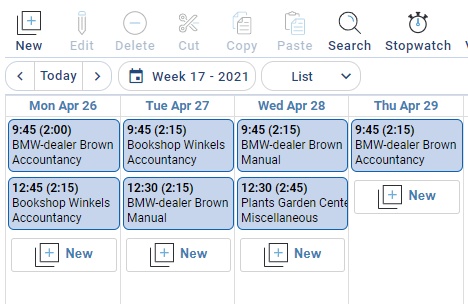
Functionality of the buttons in the button bar is the same as in the week grid.
In the week list you can not create or edit bookings by creating, increasing or decreasing a time slot. Every day column contains, below any existing bookings, a button  . With this button you can create a new booking for the day concerned, directly following any bookings previously made. To edit an hour booking use the Edit button or double click the hour booking.
Moving or copying of hour bookings can be done in the same way as in the week grid. When doing so, pay attention to the time entries. The application will try to automatically edit the bookings in the best possible way, based on any previously made bookings and the available free time slots.
An information window is displayed when hovering the mouse over an hourly booking.
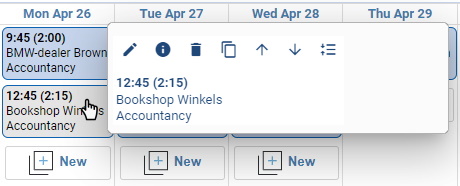
This information window contains a number of buttons with the following functions:
| Button(s) | Function |
|---|---|
 | Edit selected booking. |
 | Display information about the selected booking. |
 | Delete selected booking. |
 | Duplicate selected booking. |
 | Solve overlap automatically (only available with overlapping bookings) |
 | Move selected booking up in the list. |
 | Move selected booking down in the list. |
 | Make ALL bookings consecutively for this day. |