Week grid
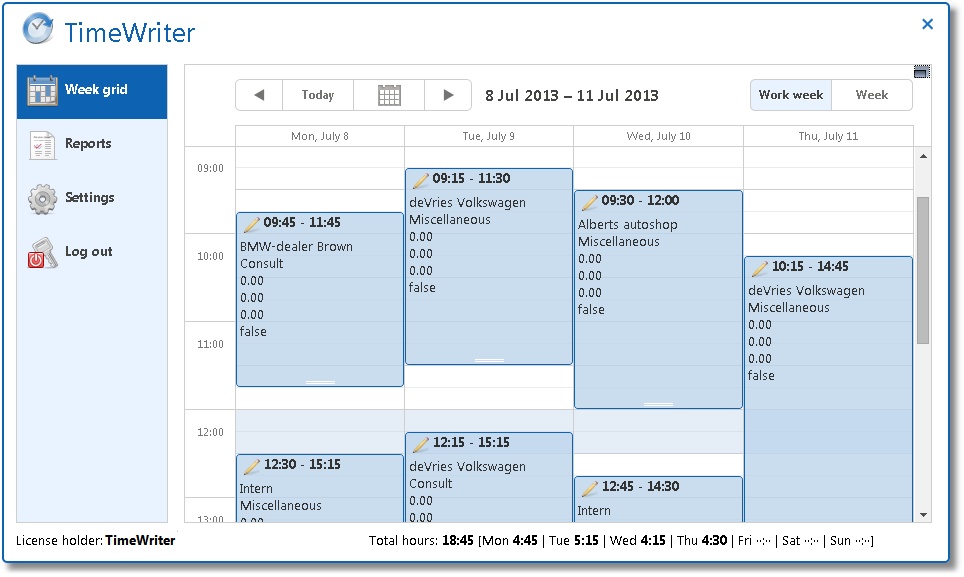
After logging in, the Week grid will open. Both in the Web client Week grid as well as in the desktop client, time slots can be created by clicking on the mouse on the start time and dragging down to the end time. When the mouse is released a screen will appear that can be used for data entry.
Changing existing bookings
Double click on a time slot on the Week grid to edit an existing booking.
The following screen will then open:
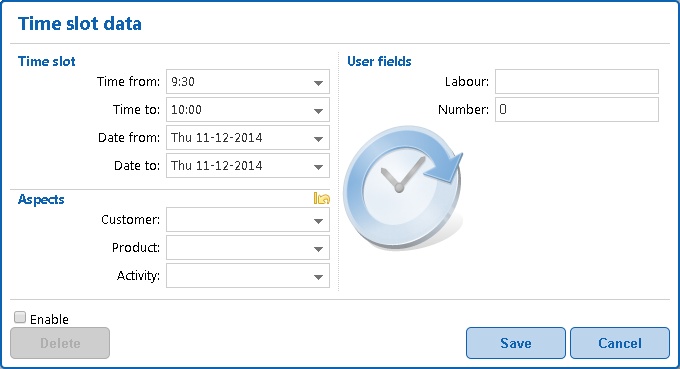
Text boxes with a downwards pointing arrow are drop-down lists. By typing text in the text box, the list will be limited to items containing the entered text.
Navigating
The buttons at the top of the Week grid have the following functions:
| Button(s) | Function |
|---|---|
 | Navigate to the previous week. |
 | Navigate to the current week. |
 | Navigate to the next week. |
 | Navigate to any week via the calendar (popup). |
 | Limit the Week grid to hours and days within a working week. |
 | Show the whole week. |